Stop sharing links on social—do this instead
Step-by-step instructions for more engagement

In my last post about growing your Facebook engagement, I recommended creating more of your own original content:
“Sharing content from other people and pages is a good way to supplement your own content—but you should not rely exclusively on sharing from others. The Facebook algorithm, which determines how many people see your posts, deprioritizes content you’ve shared from other accounts. In fact, it only receives a small fraction of the impressions original content gets.”
The Facebook algorithm also deprioritizes links that take the viewer outside of the “walled garden” of Facebook. Social platforms want you to stay within their walls, engaging with their advertising. As a result, sharing links to articles or other outside resources often don’t get a lot of engagement.
Instagram doesn’t allow links at all.
So, how can you turn outside articles into engaging original content for your social accounts?
Screenshots + square graphics.
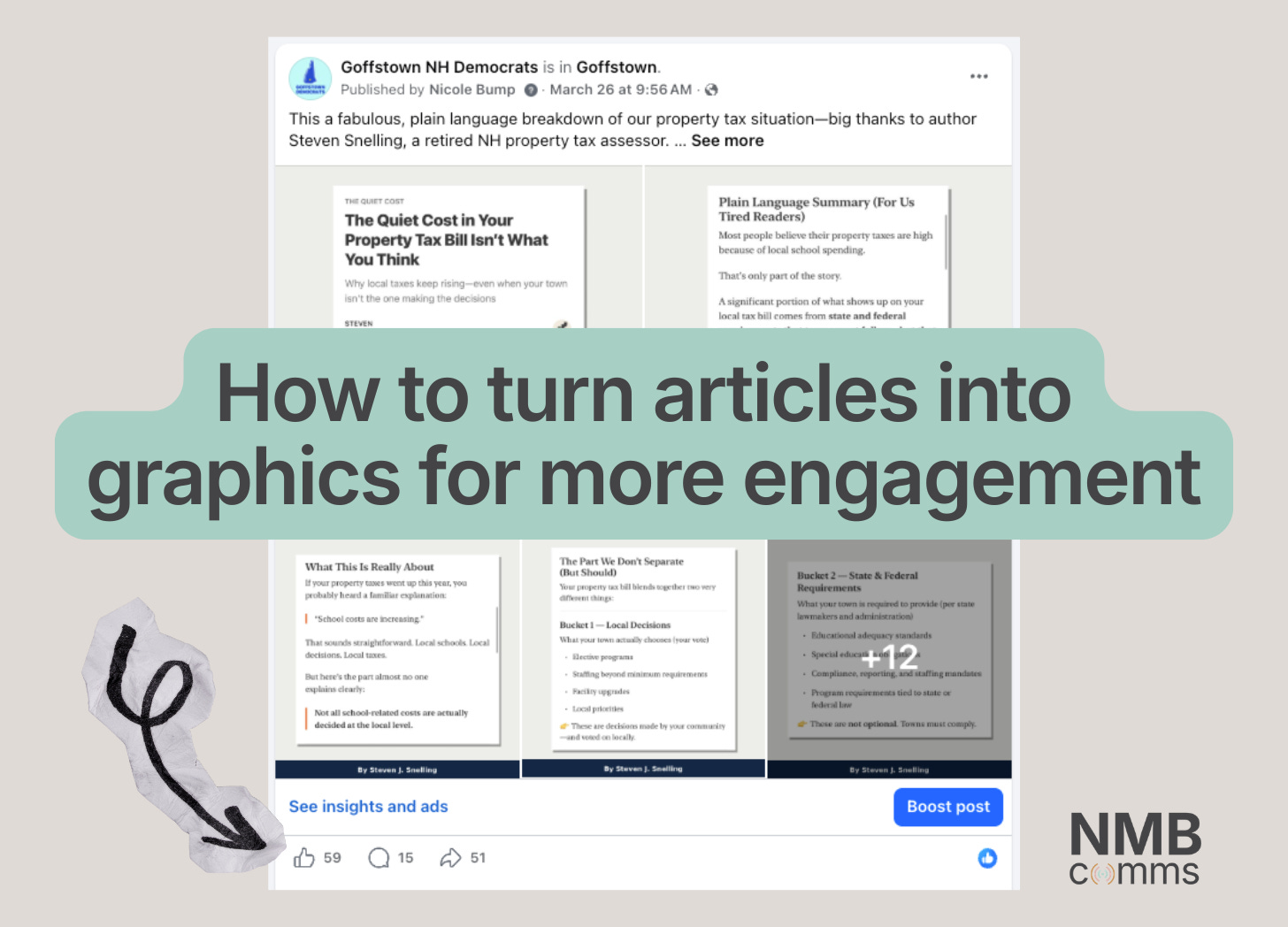
1. Take screenshots of the article.
I recommend using your phone for this step, as the screenshots will naturally be a decent size for a social graphic.
Take a series of screenshots of the article and use your phone’s crop feature to trim them of extraneous content, ads, etc.
I like to include the publication’s logo and byline on the first screenshot, if possible.
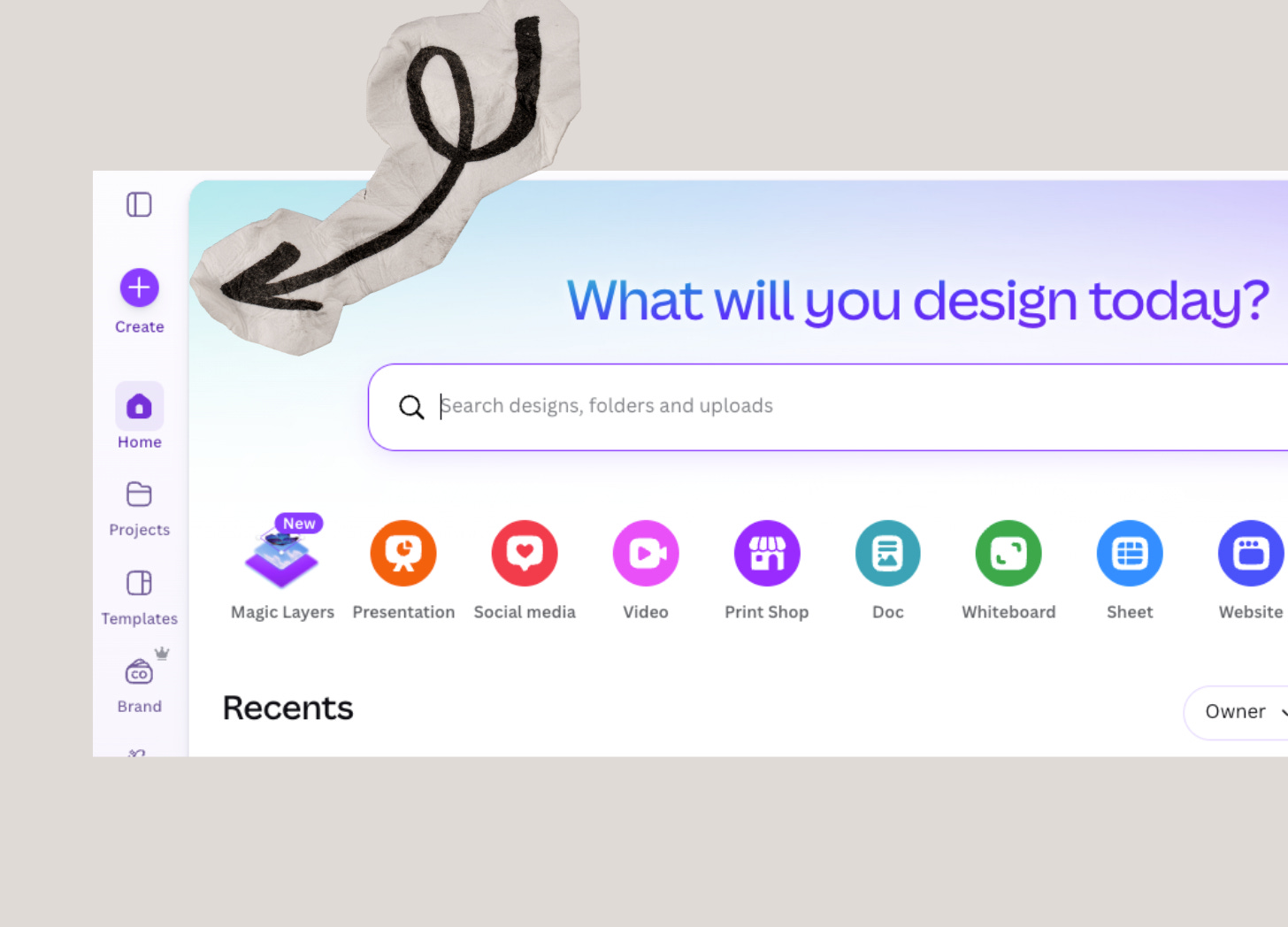
2. Use Canva to put each screenshot on a square background.
Use a tool like Canva (free version available) to put each screenshot onto its own square graphic. You can use the “Instagram Post (Square)” template.
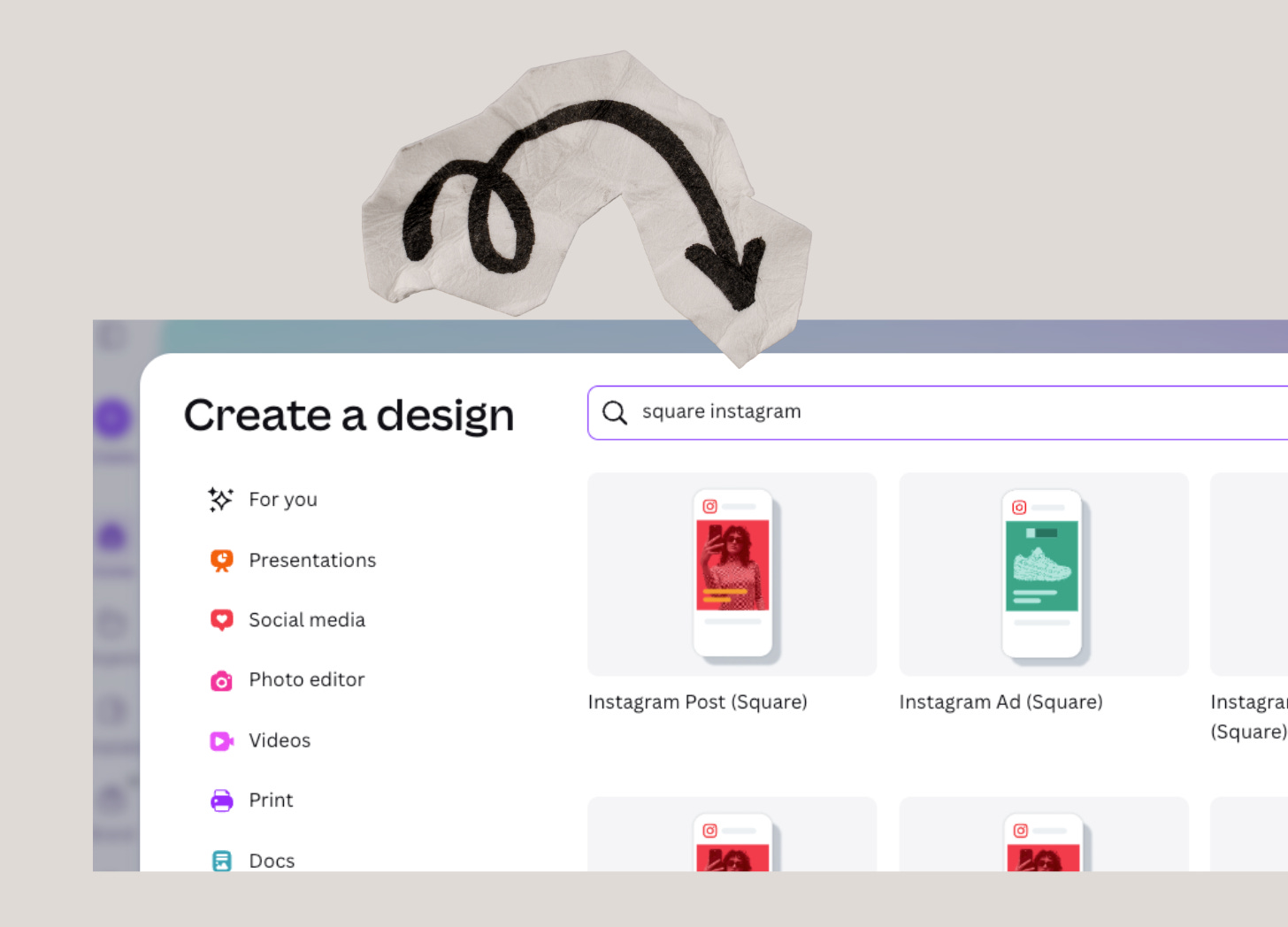
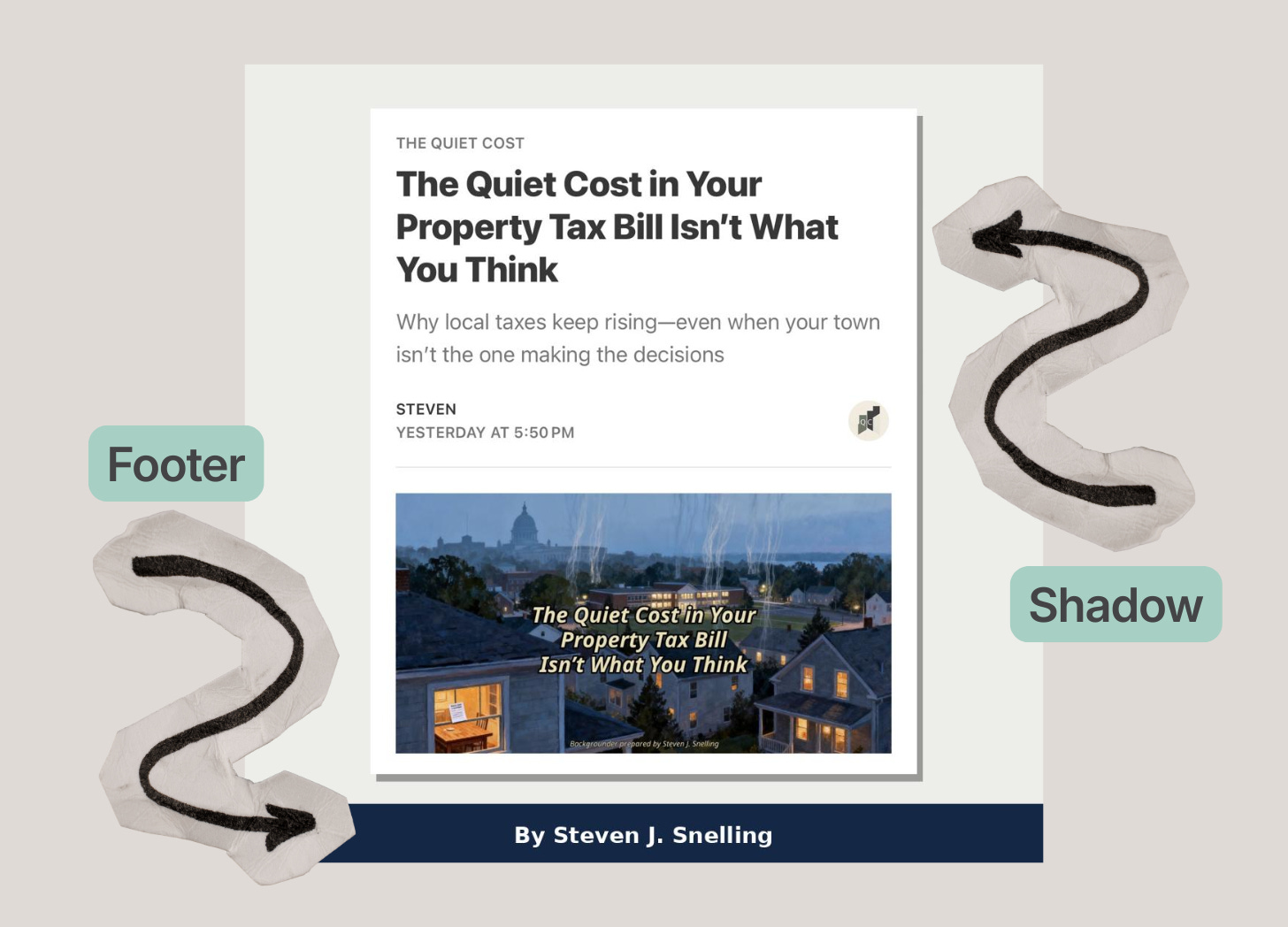
If you’re happy with your screenshots on plain white squares, you can stop here. However, Canva also lets you:
Add backgrounds (a solid color, a texture like “crinkled paper” or “newspaper”, an image, etc.)
Add a header or footer that’s common across the images
Add shadows to your screenshots to give them a bit of depth
If you’re concerned about trying to learn Canva (and feel ethically okay using AI), try a tool like ChatGPT instead. Upload your screenshots and tell the tool to “Put each of these screenshots on a square background to use on social media.”
3. Download your graphics and share them with relevant text
Once you have graphics you’re happy with, download them from the design or AI tool. Then upload them to Facebook and/or Instagram in the order in which they should appear.
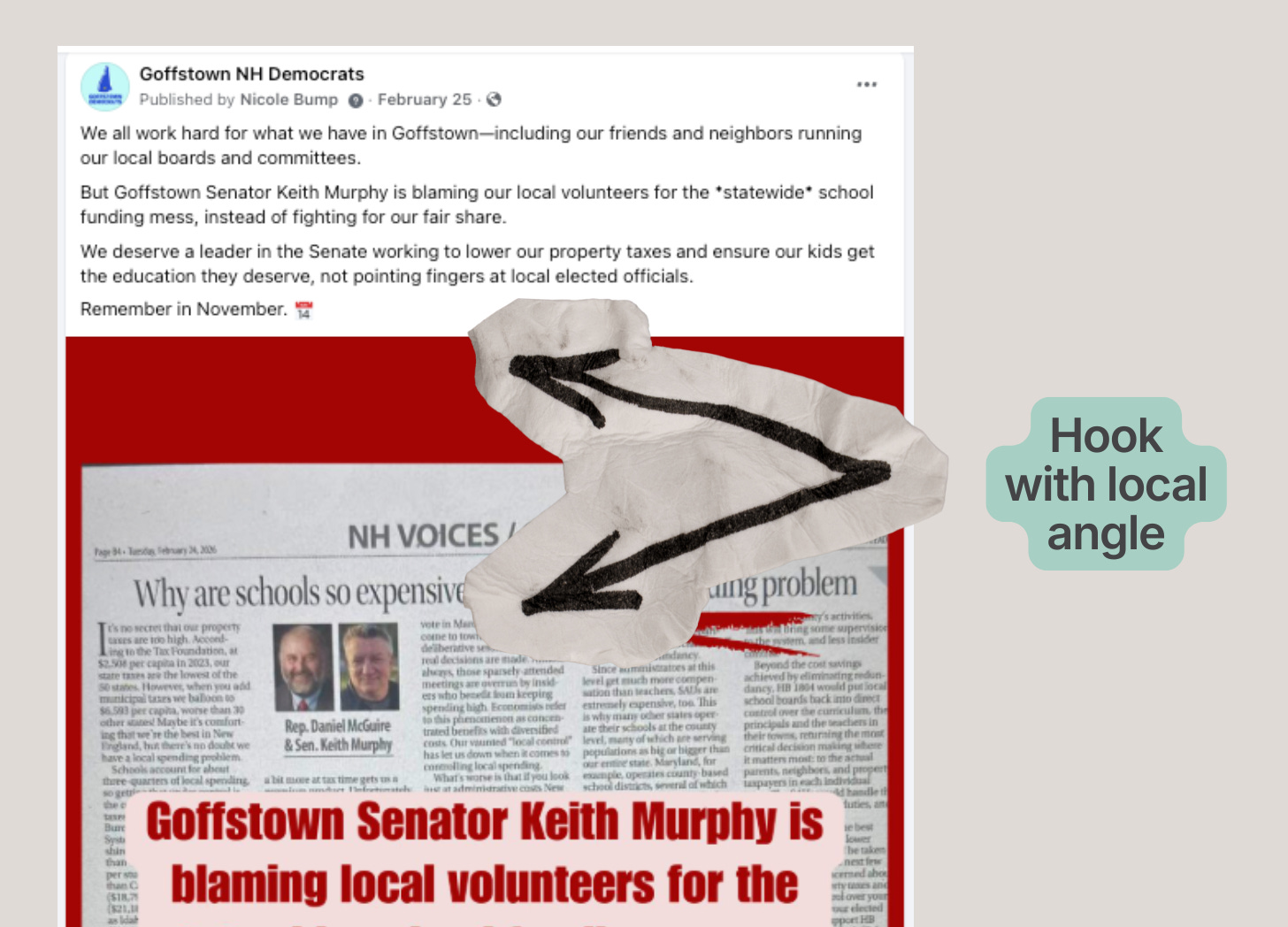
Make sure to include relevant text with your graphics. For example:
Explain why this should matter to your viewers.
Call out a local angle to the content, if applicable.
Ask a question related to the content (e.g., “Do you agree with [X]?”).
Consider this to be your “hook”. People scroll quickly and you have to catch their attention fast. What can you say to draw them in?
Bonus: Give the author credit
It’s always good form to credit where your content came from, especially if it’s a local publication or author. An easy way to do this is to tag them in the post text. This also helps to spread your content to their audience.
Follow our Goffstown Democrats accounts on Facebook and Instagram for more social inspiration.
✌️